CS2 Console Not Opening? Quick Fixes (2026 Guide)
If you’re a Counter-Strike player, you’re no doubt aware of how important the developer console is. Whether you’re adjusting settings or practicing with specific console commands, this feature is an essential part of any CS game. When it suddenly fails to launch in Counter-Strike 2, however, it can be infuriating.
The good news is that this is a relatively common problem that can usually be solved. Here is a comprehensive and easy-to-follow guide to help you get your CS2 console running again.
Why the CS2 Console Might Not Open
Before jumping into fixes, it helps to understand what’s going wrong. In most cases, the console doesn’t open because:
- It’s not enabled in settings
- The key binding is missing or incorrect
- Launch options aren’t set properly
- There’s a config or input conflict
None of these are serious problems - they just require a few quick adjustments.
1. Enable the Developer Console
The most common reason the console won’t open is that it’s simply disabled.

How to enable it:
- Open CS2
- Go to Settings
- Navigate to the Game tab
- Find “Enable Developer Console (~)”
- Set it to Yes
Once enabled, try pressing the tilde key (~). If nothing happens, move on to the next step.
2. Check Your Key Binding
Even with the console enabled, it won’t open if the key binding isn’t set correctly.
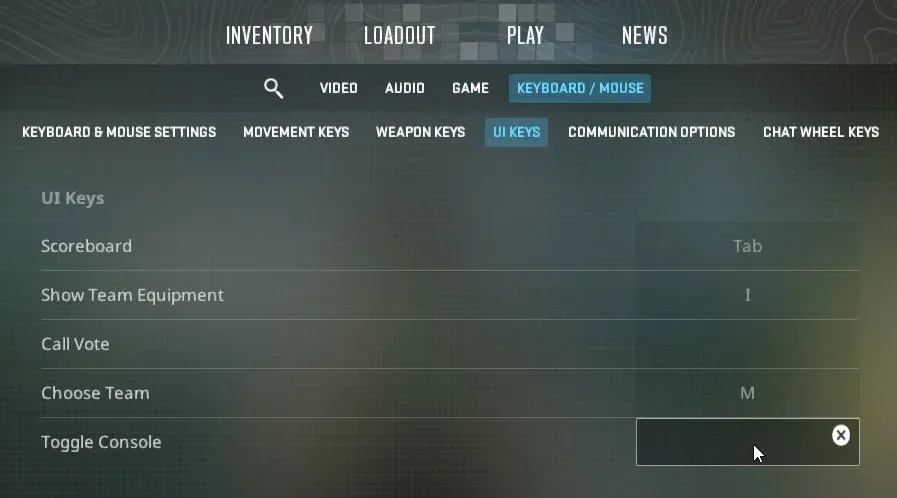
Fix it like this:
- Go to Settings → Keyboard/Mouse
- Look for “Toggle Console”
- Assign it to a key (commonly ~, but you can choose another)
Sometimes keyboard layouts (especially non-US layouts) can cause issues with the tilde key. If that’s your case, bind the console to a different key like F1 or F2.
3. Add Launch Options in Steam
If the console still won’t open, you may need to force-enable it through launch options.
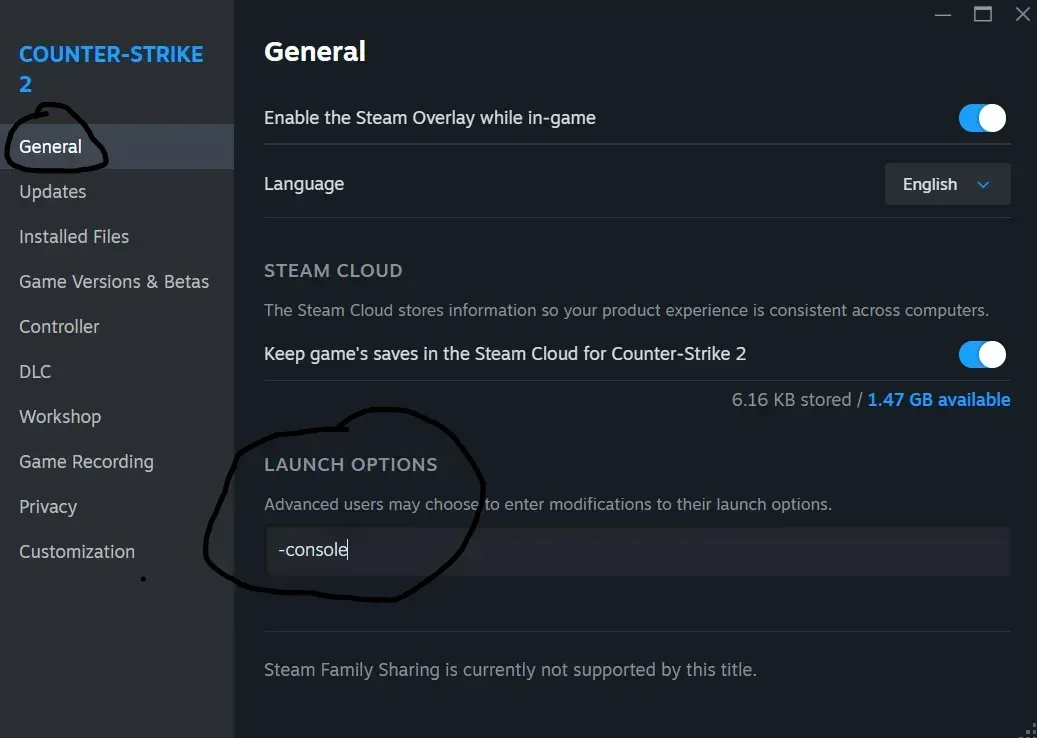
Steps:
- Open Steam
- Go to your Library
- Right-click Counter-Strike 2 → Properties
- In Launch Options, add: "-console"
This ensures the console is initialized when the game starts.
4. Reset or Check Your Config Files
Config files can sometimes override settings or create conflicts.
What to do:
- Navigate to your CS2 config folder
- Look for unusual or conflicting binds
- Reset to default if needed
A quick way to test this is by temporarily removing custom config files and launching the game fresh. If the console works afterward, you know the issue was config-related.
5. Fix Invisible or Misplaced Console
In Counter-Strike 2, the console window may be open but not visible on the screen due to resolution problems. Try running the game in windowed mode or changing the resolution to get the console window on the screen.
If the above does not work, the console window position can be manually set. To do this, follow the steps:
- C:\Program Files (x86)\Steam\userdata\<yoursteamid32>\730\local\cfg\cs2_machine_convars.vcfg
Find panorama_console_position_and_size and set it to:
- "20.00|20.00|200.00|200.00"
Save the file and restart the game via Steam.
6. Verify Game Files
Corrupted or missing files can also prevent features like the console from working.
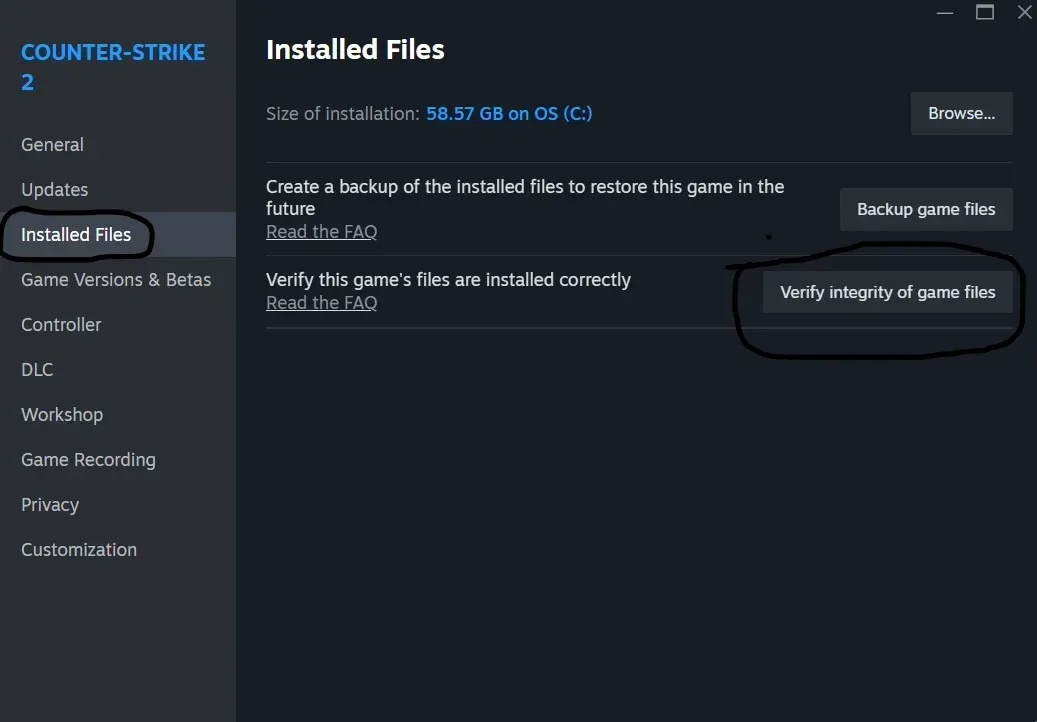
How to verify:
- Open Steam
- Right-click CS2 → Properties
- Go to Installed Files
- Click Verify integrity of game files
Steam will automatically repair anything broken.
7. Check Keyboard Layout Issues
Many players overlook this, but your system keyboard layout can interfere with the console key.
For example:
- AZERTY keyboards
- Other non-standard layouts
Fix:
- Switch temporarily to a US keyboard layout
- Or bind the console to a different key inside CS2
This is one of the most common hidden causes.
8. Disable Conflicting Software
Sometimes external software can block or override key inputs.
Examples include:
- Overlay tools
- Macro software
- Custom keyboard drivers
Try closing background applications and test the console again.
9. Rebind Using Console Commands
If the console opens once but stops working again, you can manually bind it.
Open the console (if possible) and type:
- bind "~" "toggleconsole"
This forces the correct binding.
10. Update the Game
Since Valve frequently updates CS2, bugs related to input or UI can occasionally appear.
Make sure your game is fully updated. Many console-related issues get silently fixed in patches.
Final Thoughts
If the console doesn’t open in Counter-Strike 2, it is not usually a big deal. In most cases, it is just a setting that is turned off, the key bind is set incorrectly, or it is just a small configuration problem.
Try the simple steps:
- Enable the console
- Check the key bind
- Add -console to the launch options
If this doesn’t solve the problem, try checking the files and configs. Once this is done, you will have access to one of the most powerful features in the game.