
How to Bind Jump to Mouse Scroll Down in CS2
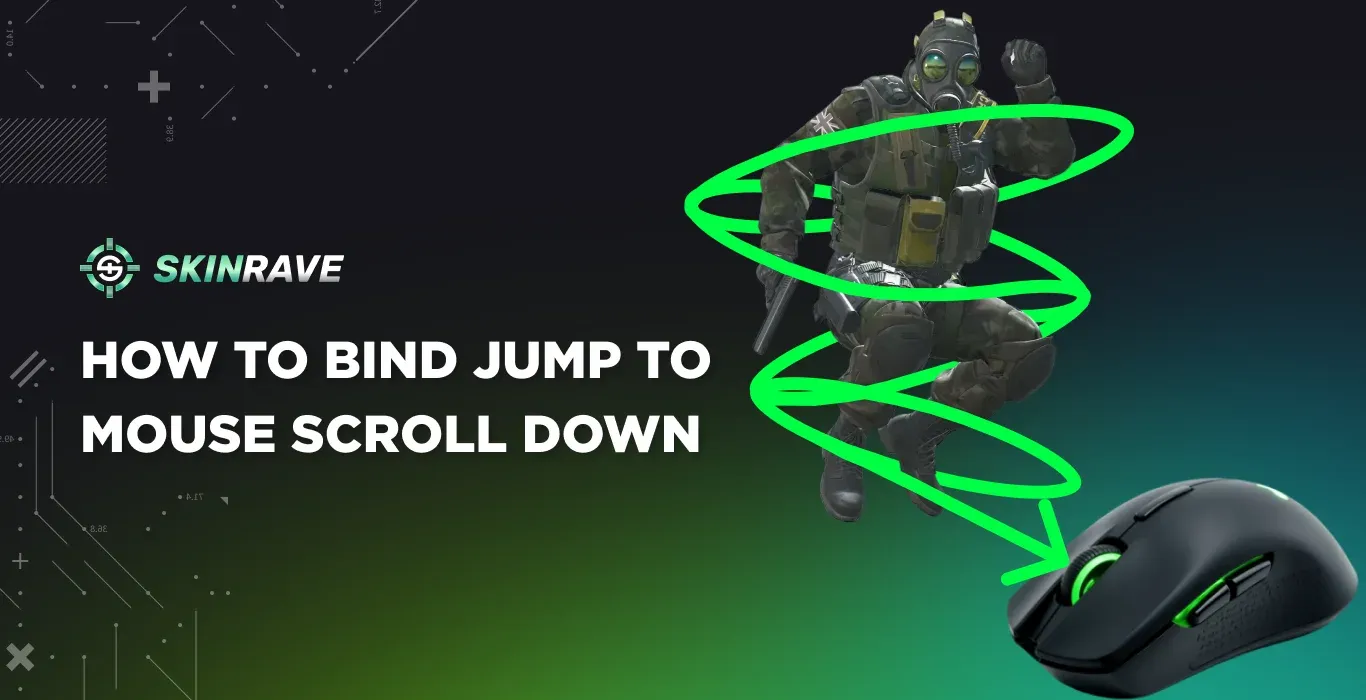
Many players who play CS2 use the mouse wheel to jump, which raises a question about the effectiveness and whether it actually provides a gameplay advantage. Mouse Scroll jump allows players to use jumps faster than using the spacebar, which improves their consistency during long matches.
It also gives players the ability to improve their movement techniques, such as dodging, bhoping, or just maneuvering, making it an excellent bind to use in competitive matches.
How to Bind Jump to Mouse Scroll Down
By Default in CS2, the jump command is assigned to the SPACE bar, but if you want to jump by using your mouse scroll wheel, you can modify it. There are two ways to change your bind settings: in the Settings Menu or in the Developer Console (about which we already have an article).
CS2 Scroll Wheel Jump in Settings Menu
To bind your Jump to Scroll Wheel Down using the in-game Settings Menu, you should follow these instructions:
- In CS2, go to Settings and find the “Configurations” icon.
- After clicking it, navigate to the “Keyboard/Mouse” tab and click it.
- Then you should scroll down to find the “Movement Keys” and find the Jump icon.
- Now, when you click on it, you can assign a key to it by just pressing the button or using the mouse scroll up or down.
Note: If you rebind the Jump button to another key or mouse scroll, the old jump binding will be unassigned, and you will no longer be able to jump using it.
CS2 Scroll Wheel Jump in Console
To bind Jump to Scroll Wheel using the Developer Console, you will need to:
- Check if your Developer Console is enabled in your Game Settings.
- Now, when you have checked it, press [`] to open the Developer Console.
- Type bind mwheeldown +jump to bind the Jump to Mouse Wheel Down.
- To bind the Mouse Wheel Up type, bind mwheelup +jump.
Note: If you are willing to bind several keys to do the Jump action, you should type all the binds one after the other:
bind mwheeldown +jump;bind mwheelup +jump;bind space +jump
This command will automatically allow you to jump using the regular SPACE bar and both Mouse Wheel Down and Up.
Moreover, when you bind to jump using the mouse wheel up or down, it means that you are no longer able to switch weapons using the set key. To restore your Mouse Wheel actions and Jump actions to the default, simply type:
- Restore Weapon Switching (Scroll Down)
Bind mwheeldown invnext
- Restore Weapon Switching (Scroll Up)
Bind mwheelup invprev
- Restore Jump Key (SPACE)
Bind space +jump
Changing these commands helps players to be flexible in their controls and get better in matches.
Additional Jump Bind Tweaks (Bunnyhop)
Bunnyhop is a technique of jumping that increases the player’s speed according to the jumps made without stopping. This technique is primarily used by pro players, which helps them to maneuver from one position to another.
Back in the early days of Counter-Strike, this was one of the most skilled moves a player could do, but nowadays in CS2, Valve nerfed bhop. Now you can only activate bhop in Private Servers using this command in Developer Control:
- sv_enablebunnyhopping 1 – Enables bhop.
- sv_autobunnyhopping 1 - Enables automatic jumping when holding the jump button.
- sv_maxvelocity 3500 - Allows you to increase your speed when bhopping.
Moreover, you can find a deeper guide on Bunnyhopping in this article: Click Here
Benefits of Binding Jump to the Mouse Wheel
There are many benefits of bindings, and the most important ones are:
- Better Movement Controls
Jumping using Mouse Wheel helps you with:
- Faster Rotation
- Clean Strafes
- Smooth momentum preservations
This is noticeable during dodging or long rotations.
- Reduced Input Errors
Spacebar jumps rely on a perfectly timed press, and mouse wheel jumps reduce the misinputs a spacebar can cause because:
- You don't rely on finger reaction speed
- Allows you to perform multiple scroll ticks, which makes the jump’s success rate higher.
- Easier Jump Throws
Sometimes people combine jump-throws using binds, which:
- Improves consistency
- Reduces the quantity of missed lineups
- Feels faster to use
Many players combine jump and throw using this command in the Developer Console:
- alias "+jt" "+jump; -attack"; alias "-jt" "-jump"; bind "KEY" "+jt";
- Lower Finger Fatigue
Sometimes spacebar tappings can cause thumb fatigue and mouse binding allows you to:
- Play more comfortably for a longer period of time
- Strain your fingers less during heavy matches
- Consistent Bhops
Scrolling the mouse wheel to jump sends multiple jump commands immediately, which makes the bunnyhopping in private servers easier than using the spacebar.
Binds for Crouch Jumping
Crouch jumping helps you to jump and crouch by using only one key. It is useful when you want to jump to a place that requires you to crouch when jumping. Such of that places is Boxes located in Mid of Dust 2. Here are the binds that you need to type separately in the Developer Console:
- alias "+hjump" "+jump; +duck";
- alias "-hjump" "-jump; -duck";
- bind "space" "+hjump"
Why Pro Players Use Jump Binds?
If you have ever watched how a pro player uses their mouse, you may have noticed that many use the mouse wheel to perform jumps. Donk, m0NESY, s1mple, dev1ce – almost every professional player uses the mouse wheel to jump because it gives them a more consistent timing, especially during intense moments.
While it is not a magic that makes you a pro player, it helps you to reduce the missed jumps and improve your overall movement.