CS2 Radar Settings: Full Guide (2026)
In Counter-Strike 2, most of the information obtained during the game comes from what you see and what info your teammates tell you. However, there’s another way of obtaining vital information – the radar.
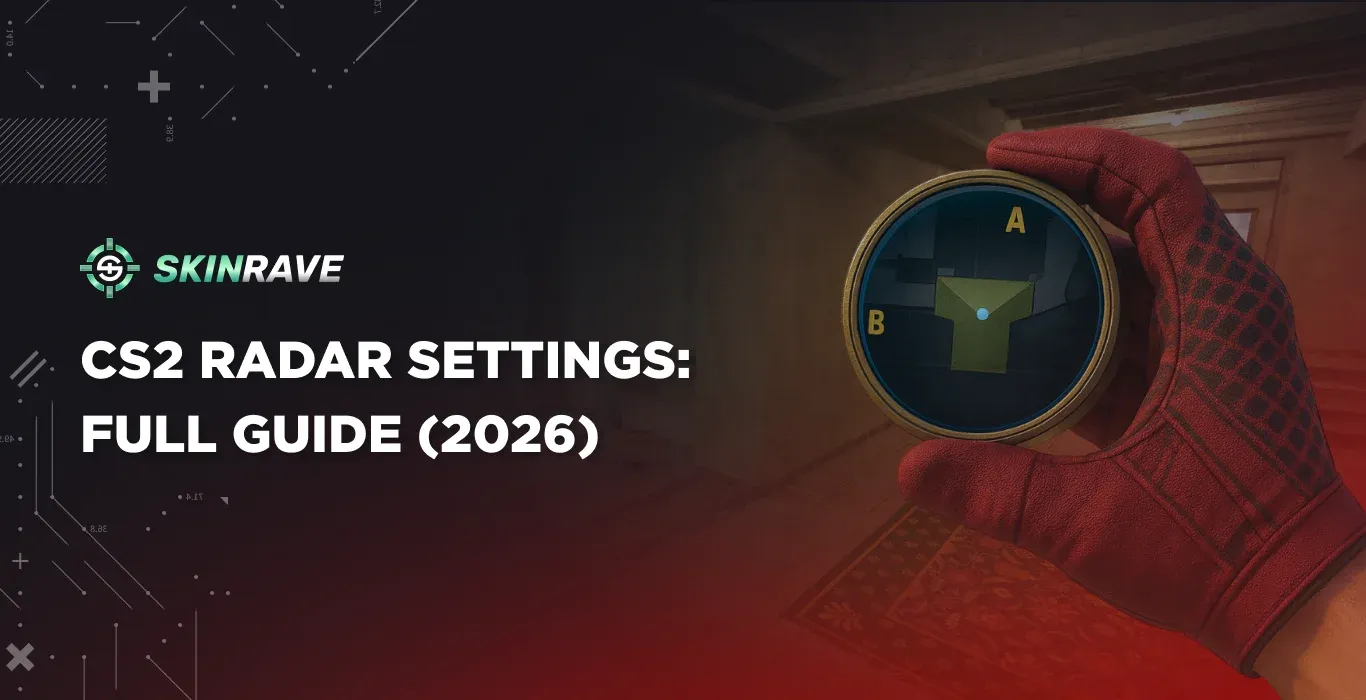
The radar is a small image of the map, which continuously shows your position and all that's happening during the game. Whenever the enemy makes a step closeby or fires a shot, the radar shows its exact position and whether he’s carrying the bomb or not.
Using the radar in your everyday matches will save you and your teammates time on getting the info necessary for the tactic.
How to Enable Developer Console
Before you start trying Radar Commands, make sure the Developer Console is on.
Here’s how you turn it on:
1. Start the game.
2. Go to the settings.
3. Click on the “Game” tab.
4. Find the “Enable Developer Console (~)” option.
5. Switch it to “Yes”.
Now you are ready to use any type of commands.
How to Change Radar Commands?
There are three ways to tweak your radar settings.
- First, you can go to Settings, then Game, and then Radar.
- Second, you can copy and paste commands into the console. Just be sure you've enabled the developer console in the settings.
- Third, you can add the commands to your autoexec config file. This way, your preferred settings will be there every time you start the game.
Best Radar Settings in CS2
Radar is super important because it gives you a live view of the map. It helps you keep tabs on your teammates, spot enemies, and see what objectives are up for grabs.
The standard radar settings are made to give you a good mix of everything – you're in the map's center, it spins when you move the camera, and the zoom is set just right so you can see clearly.
Knowing how these settings work lets you tweak the radar, so you know what's happening, decide faster, and play better.
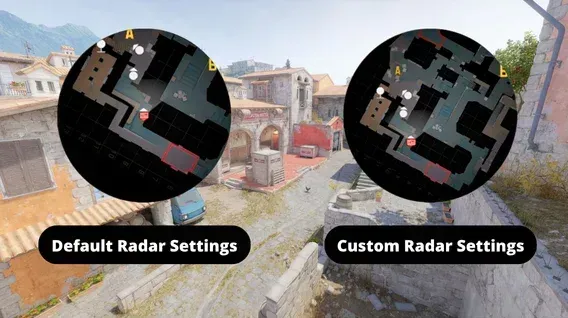
Cl_HUD_Radar_Scale
The command cl_hud_radar_scale lets you change the size of the radar on your screen.
Default setting: 1.0
If you set it lower (like 0.8), the radar gets smaller, so you have more free space on your screen.
If you set it higher (like 1.2 or 1.3), the radar gets bigger, so it's easier to see icons and map details.
If you have a big monitor or a high resolution, you might want to make the radar a little bigger to see it better. Some like to make it smaller for a cleaner screen.
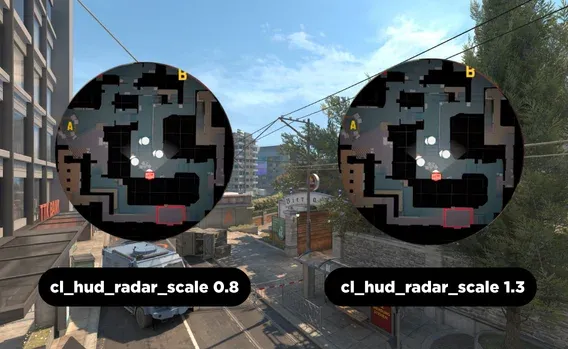
Cl_Radar_Always_Centered
The cl_radar_always_centered command controls whether your player icon stays in the middle of the radar.
If it's set to 1 (which it is by default), your icon is always in the center.
If you set it to 0, the radar will move around, so you can see more of what's in front of you on the map.
A lot of competitive players set this to 0 because it lets them see more of the map. This helps them figure out where to go and guess where enemies might be.
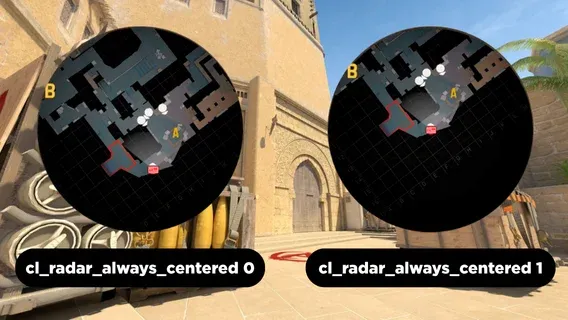
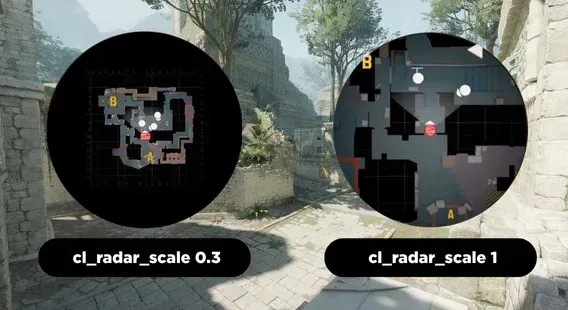
Cl_Radar_Scale
The cl_radar_scale command lets you adjust how your radar is zoomed in CS2.
Default setting: 0.7
Want to see more of the map? Then go lower (like 0.3–0.5): This zooms out, showing more of the map around you.
Want more detail? Go higher (like 0.8–1.0): This zooms in, showing less of the map but with greater detail.
Pro players often set this lower (around 0.4) to get a wider view. This helps them see where teammates and enemies are, which is really useful for moving around and controlling the map.
Cl_Radar_Rotate
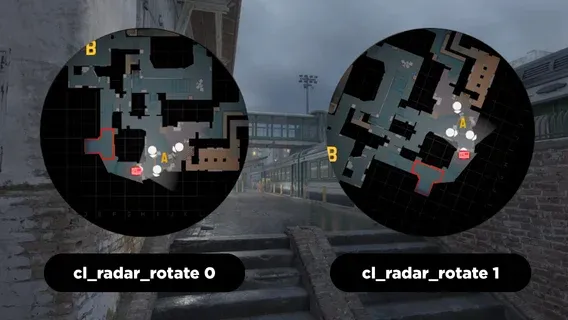
The cl_radar_rotate command lets you decide if the radar in Counter-Strike 2 spins around when you move your view.
Normally, it's set to 1. This means the radar rotates with you, so the top always shows where you're looking.
If you set it to 0, the radar stays still. It's like you're spinning around inside a map that doesn't move.
If you're new to the game, keeping it at 1 can help you get your bearings. More experienced players sometimes switch to 0 because a fixed map can make it easier to plan strategies and call out enemy positions.
Cl_Radar_Icon_Scale_Min
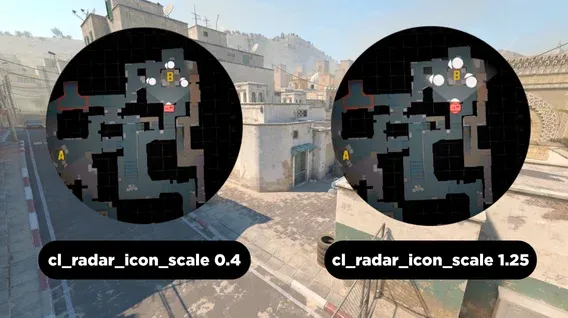
The cl_radar_icon_scale_min command changes the size of player icons – like teammates, enemies, and the bomb – on your radar.
Default settings: 0.6
If you set it lower, like to 0.4, the icons shrink. This lets you see more of the map at a glance.
Setting it higher, say between 0.8 and 1.0, makes the icons bigger and easier to spot. But keep in mind, they might cover more of the map.
A lot of players set this between 0.5 and 0.7. It's a good balance, giving you a full view of the map while still letting you quickly see teammates and what you need to do.
Make the CS2 Radar Comfortable For You
In Counter-Strike 2, your radar is super useful for knowing what's going on, but only if it's set up right for your screen. The default settings are okay when you're starting, but changing a few things can really help you read the map better and react faster during games.
Here's how to set it up for comfort:
- Zoom out a bit (cl_radar_scale 0.4–0.5):
This lets you see more of the map and keep track of where players are moving.
- Turn off centering (cl_radar_always_centered 0):
This helps you focus on what's in front of you instead of what's behind.
- Change the radar size (cl_hud_radar_scale 1.1–1.3):
Make the radar easier to see based on your screen size.
- Keep icons clear (cl_radar_icon_scale_min 0.6–0.7):
Find a good balance to see both the icons and the map clearly.
- Pick a rotation style (cl_radar_rotate 0 or 1):
You can either keep the map fixed with north always up or have it rotate as you move.
Find a setting that feels right for you and helps you see what you need to without cluttering your screen. If you're comfortable, you'll make decisions faster and play better.
Pro Radar Settings
Pro CS2 players tweak their radar to be super aware of what's going on and react faster when they're competing.
Instead of using the regular settings, they usually go for a wider view, smaller icons, and a radar that's not right in the middle. This helps them see more of the map and guess where enemies might be.
Pro Settings They Often Use:
- cl_hud_radar_scale 1.15
- cl_radar_scale 0.4
- cl_radar_always_centered 0
- cl_radar_rotate 0
- cl_radar_icon_scale_min 0.6
Why These Settings Are Popular:
A zoomed-out radar shows more of the map, which is great for planning moves and telling teammates what's up.
Having the radar off-center puts the focus on what's in front of you – that's usually where the action is.
A radar that doesn't rotate keeps things consistent, so you can read the map quickly.
Making the radar on the screen a bit bigger makes things clearer without making it too messy.
The icon size is just right – you can see your teammates and what you need to do, but it's not too distracting.