CS2 Won’t Launch – Common Causes and Quick Fixes
Launching Counter-Strike 2 (CS2) only to see nothing happen can be frustrating.
In most instances, the problem is easily solved, such as when damaged or outdated files, drivers, or software issues are involved.
The first thing to do is to check the integrity of your game files by using Steam. The game can fail to launch if your game files, such as the CS2.exe, are corrupted.
To fix this, open Steam, go to your Library, right-click Counter-Strike 2, select Properties → Installed Files, and click “Verify integrity of game files.
Steam will scan and re-download any bad files. After verification, try launching CS2 again – often this simple step clears up launch problems by replacing missing or damaged files.
Corrupted or Missing Game Files
- Verify game files: Use Steam’s Verify Integrity of Game Files feature in Steam as mentioned above. This will diagnose missing/corrupted files in the game and re-download them.
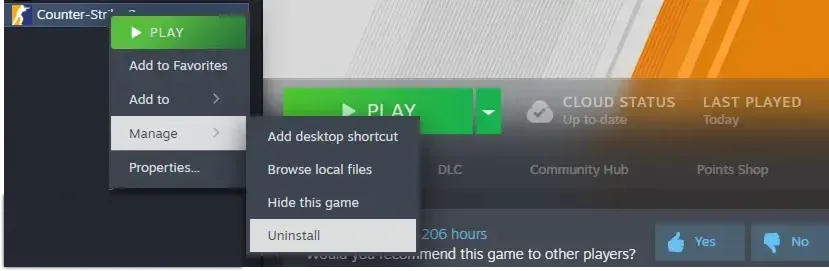
- Reinstall if needed: If verification fails or the game still won’t start, you may need to reinstall CS2. This involves backing up any custom configs, uninstalling CS2 through Steam, deleting any residual Counter-Strike 2 folders inside your Steam library, and reinstalling.
- Check antivirus/quarantine: Files from CS2 may also be quarantined by antivirus or system cleaners. Ensure that CS2 or the Steam application isn’t blocked. You can turn off the real-time protection feature of the antivirus software for now.
Outdated or Missing Graphics Drivers
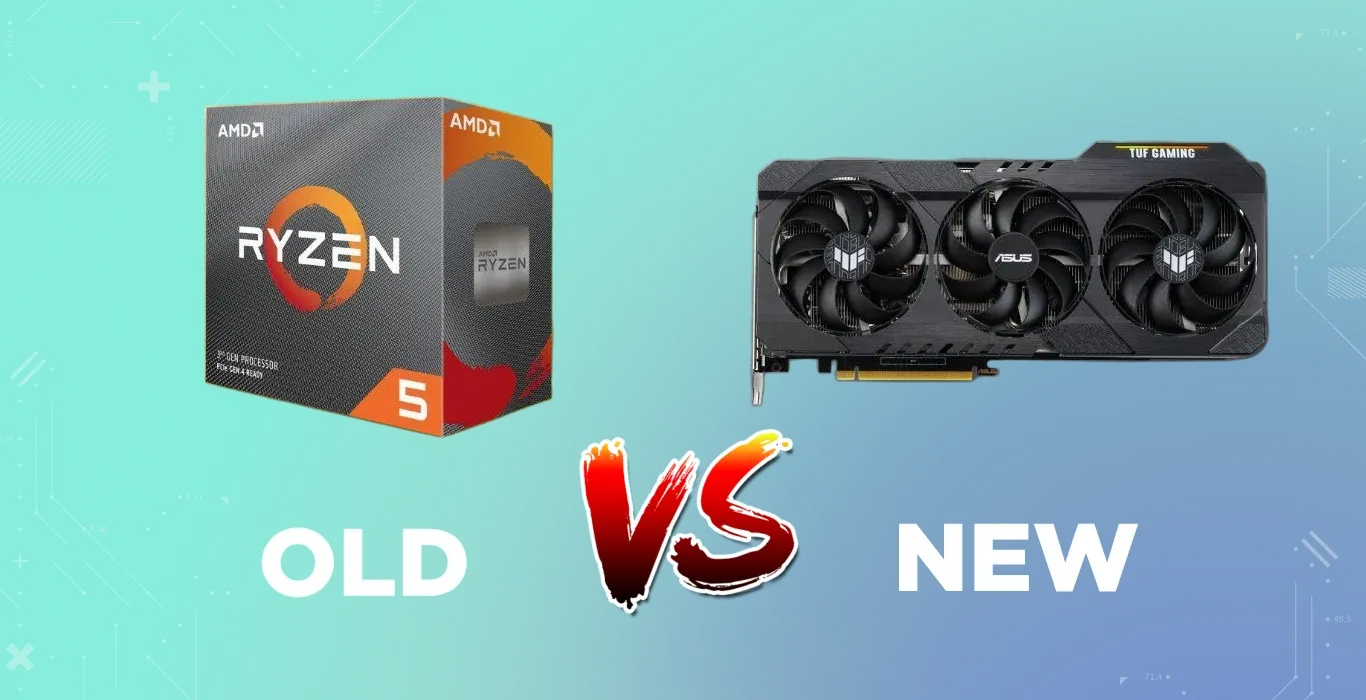
Out-of-date GPU drivers can prevent CS2 from launching or cause crashes at startup.
Make sure that you are always running the latest version of your graphics card drivers so that your CS2 will support DirectX properly. Just download it from NVIDIA's or AMD’s official site or from GeForce Experience/Adrenalin.
On Windows, ensure that Steam and CS2 are running with the dedicated GPU (check the control panel of your NVIDIA or AMD card). Sometimes laptops automatically run on integrated graphics, resulting in the launcher failing to start.
After updating, restart your PC and try CS2 again.
- Update drivers: Go to your GPU manufacturer’s website. You can use both GeForce Experience and the website for NVIDIA GPUs and Adrenalin software for AMD GPUs. You should download the latest Intel graphics driver as well.
- Avoid unreliable updaters: Don’t use third-party driver update tools; they can install the wrong drivers and cause more issues.
- Dual-GPU check: If you’re running a system with both the integrated and dedicated GPUs, make sure CS2 is utilizing the dedicated graphics card. Windows 10/11 gives you the flexibility to choose your graphics card in the Graphics Settings or in the control panel for your graphics card.
Conflicts with Other Software
Some background applications or overlays can block CS2 from starting.
In many cases, it is a result of having a Discord/TeamSpeak overlay running, GPU software such as NVIDIA ShadowPlay, AMD’s Radeon Overlay, or MSI Afterburner, or anti-cheat/antivirus programs.
These can interfere with CS2’s files or graphics engine.
To troubleshoot:
- Disable overlays: In Steam, disable the Steam Overlay (Steam > Settings > In-Game). In Discord, turn off Enable in-game overlay. Also, disable any in-game overlay in GeForce Experience or AMD’s software.
- Close background apps: Open Task Manager (Ctrl+Shift+Esc) and end tasks for programs like MSI Afterburner, Razer Synapse, Logitech Gaming Software, Overwolf, etc. These tools often hook into games and can cause crashes.
- Antivirus/Firewall: Temporarily disable or whitelist CS2 in your antivirus or Windows Defender. Security software can sometimes falsely block CS2 as a threat. If disabling fixes the issue, add CS2 to the exception list and re-enable protection.
- Anti-cheat tools: If you have third-party cheat prevention (Faceit AC, BattlEye, etc.), ensure they are updated. Some players found that removing or reinstalling these tools resolved launch problems.
Try launching CS2 after each change. In many cases, simply closing conflicting apps gets the game running.
Steam Client & Download Issues
Sometimes the issue isn’t CS2, it’s Steam.
If CS2 won’t download or stays stuck on “Update Queued,” clear Steam’s download cache and restart Steam.
In Steam: go to Settings > Downloads and click Clear Download Cache.
Then log back in and retry the download.
Also, ensure that auto-updates are enabled for CS2: in your Steam Library, right-click CS2, go to Manage > Properties > Updates, and set Always keep this game up to date.
- Run Steam as admin: Right-click the Steam shortcut and choose Run as administrator. Sometimes Steam needs elevated permissions to launch games.
- Compatibility mode: If running into Steam launcher issues, try launching CS2 directly from its .exe file.
- Check Steam status: Occasionally, Steam server problems may not allow games to open. Checking Steam’s status page should inform you of possibly downed servers. If so, wait a bit and try again later.
Many Steam-related issues can be eliminated by clearing the cache and making sure Steam is up-to-date.
Windows Updates and Compatibility
CS2 is compatible with Windows 10/11 (64-bit) and requires up-to-date system files.
Make sure Windows Update has been run recently and that you have the latest DirectX installed. In Windows Update, click Check for updates to get any pending fixes. A fully updated OS can prevent obscure launch errors.
If you recently installed a Windows update and CS2 started acting up, try setting CS2 to disable Windows’ fullscreen optimizations. Right-click the CS2 icon, select Properties, go to Compatibility, and check “Disable fullscreen optimizations.
Also, enable “Run this program as administrator” on the Compatibility tab. This ensures CS2 has full access to memory and display settings – turning off optimizations can stop weird crashes or performance bugs.
macOS and Linux Notes
macOS: CS2 does not have a native Mac version. Valve discontinues support for Mac OS in CS2. Mac users can use alternatives like GeForce NOW (cloud gaming) or run Windows via Boot Camp.
Linux: CS2 has a native Linux build intended for the Steam Runtime (Sniper) environment. However, some players have reported Vulkan driver errors or anti-cheat (VAC) issues on Linux.
If launching on Linux, ensure your Vulkan or NVIDIA/AMD Linux drivers are up-to-date and consider using the Proton compatibility layer. Many Linux users find that switching to the Steam Linux Runtime (or using Proton) allows CS2 to launch, though VAC may require the “Steam Linux Runtime - Sniper” environment.
In short, Linux configurations vary, but updating graphics drivers (Mesa, AMDVLK) and matching Steam’s recommended runtime can resolve launch problems.
Recent Updates and Known Issues
CS2 is regularly updated, and occasionally a new patch can introduce launch bugs.
For example, some players reported random crashes immediately after a mid-2024 update, but Valve issued a fix in the next patch. In general, always keep CS2 itself updated to the latest version.
If a recent CS2 or GPU driver update seems to coincide with launch failures, check online forums or Valve’s update notes – often others have the same issue and a hotfix is on the way.
The key is to also keep your system drivers current, since outdated graphics drivers immediately after a CS2 patch can cause crashes.
Last Resort Solutions
If you’ve tried all the above and CS2 still won’t start, here are some final steps:
- Reinstall CS2: As a last resort, completely uninstall CS2 via Steam, delete any remaining CS2 folders in Steam\steamapps\common, and then reinstall. This ensures no corrupted files remain.
- Clean Boot: On Windows, you can try a clean boot to rule out hidden conflicts. Use msconfig to disable all non-Microsoft services and startup apps, then reboot and try CS2.
- Contact Support: If nothing works, reach out to Steam Support or the CS2 community. They may offer specific fixes or identify hardware issues.
These steps may be overkill, but they usually solve the rare case where CS2 still refuses to launch.
With patience and by following the tips above – verifying files, updating drivers, disabling conflicts, and keeping everything up-to-date – most players get CS2 running again quickly.