
Mouse Acceleration in CS2: Complete Guide
Here's something wild: you might be grinding aim training every day, blaming your "bad aim," when the real problem might be a Windows checkbox you didn't know existed.
It's called mouse acceleration, and there's a good chance it's enabled right now, quietly destroying your muscle memory.
Mouse acceleration is a feature that adjusts the movement of your crosshair according to the speed of your mouse movement. Move your mouse faster, and the crosshair travels farther - even if the physical distance is identical.
Think of it like this: slowly drag your mouse 10cm across your pad, and you turn 45 degrees. Now whip that same 10cm distance quickly, and suddenly you've done a 90-degree spin. Same distance, different result. Wild, right?
By default, Windows enables this through "Enhance pointer precision," which many players don't even realize is active. You could be playing with acceleration right now and not know it.
Why Do Pro-Players Avoid Mouse Acceleration in CS2?
Almost all competitive players turn off mouse acceleration, and the reason is simple: it is all about consistency.
When it comes to competitive CS2, muscle memory means everything. You have to make the exact same flick, spray control adjustment, or crosshair placement thousands of times. Unfortunately, acceleration makes it very difficult to accomplish this due to its effect on where your mouse ends up, depending on its speed.
Most of the top players, such as ZywOo, dev1ce, EliGE, and KSCERATO, play with acceleration disabled. Their settings are based more on muscle memory and repeatability rather than any theoretical advantage that acceleration may give.
But there are some rare occasions. XANTARES is the Turkish pro who plays with mouse acceleration enabled and is known for his excellent aim.
His flicks are so fast and accurate that "XANTARES peek" became a strong strategy. He singlehandedly proves that it's not impossible to succeed with acceleration - it's just harder.
Are There Any Advantages to Mouse Acceleration?
Mouse acceleration offers one main benefit: you can have low sensitivity for precise aiming while still making quick 180-degree turns. This is particularly useful if you have limited desk space or a small mouse pad. You get precision when aiming carefully and speed when you need to turn fast.
The trade-off? You sacrifice the consistency that competitive players rely on. Most pros would rather increase their sensitivity slightly or get a larger mousepad than deal with acceleration's unpredictability.
How to Toggle on/off Mouse Acceleration in CS2
CS2 uses Raw Mouse Input by default, which bypasses Windows settings while you're in-game. However, you should still disable acceleration in Windows for the best experience:
- Press Windows Key + R
- Type "main.cpl" and press Enter
- Go to the "Pointer Options" tab
- Uncheck "Enhance pointer precision"
- Click "Apply"
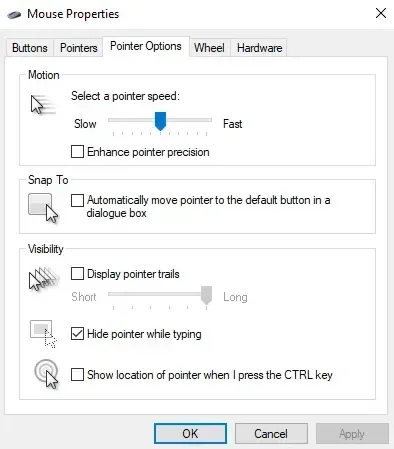
Note: CS2 removed the old m_rawinput console command from CS:GO. The game now always uses raw input, so you don't need launch options like -noforcemaccel.
There's also another way of turning the acceleration off.
- Search "Mouse Settings" in your Windows search.
- Turn off the "Enhance pointer precision"
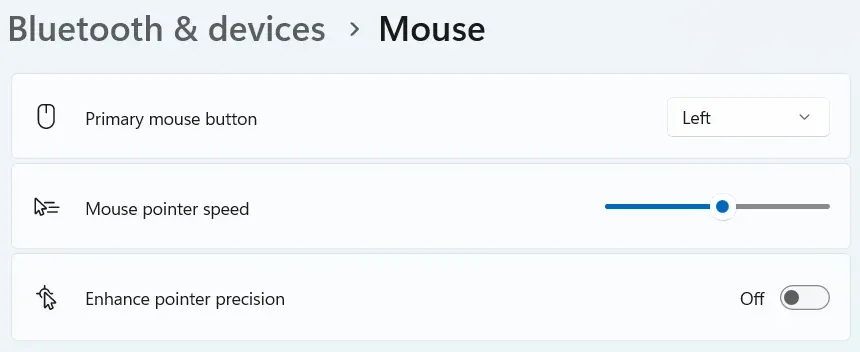
Disabling mouse acceleration is this easy, and the results are seen in no time.
When Should You Use Mouse Acceleration?
Usually, everyone suggests turning off the mouse acceleration, but there are a few scenarios where it might make sense not to:
- You've already played thousands of hours with acceleration, and switching would destroy your existing muscle memory․
- You have extremely limited desk space and cannot use a larger mousepad.
- You're playing casually, and personal comfort matters more than optimization.
How to Compare Your Performance With And Without Acceleration
If you're testing whether to use acceleration, track your stats over at least 20-30 matches. Focus on:
- Kill/Death Ratio (K/D)
- Average Damage per Round (ADR)
- Headshot percentage
- First bullet accuracy
Some online tools provide detailed analytics that help you track these metrics and see if your performance actually improves after disabling acceleration. Pay special attention to accuracy stats and consistency across matches.
Recommended Mouse Settings for CS2
Based on what professional players use:
- DPI: 400 - 800 (most common is 400 or 800)
- In-game sensitivity: 1 - 2.5 (aim for eDPI of 600-1200)
- Polling rate: 1000Hz
- Raw input: Enabled (default in CS2)
- Mouse acceleration: Disabled
Examples: ZywOo uses 400 DPI with 2.00 sensitivity. Ax1Le uses 800 DPI with 1.50 sensitivity. Both have acceleration disabled.
Final Thoughts
Mouse acceleration is debatable, and the statistics clearly show this: most professional CS2 players disable mouse acceleration, and while there are some exceptions, such as XANTARES, these are fewer than 1% of top players, and it acts as a negative influence for the rest.
The best approach? Disable acceleration, find a sensitivity that you like, and stick with it long enough to develop some decent muscle memory. Tweaking settings each time is not hurting you as much as a particular setting. Just be sure it's an educated choice, and give it enough time with consistent settings to develop the skills necessary for proper aim.